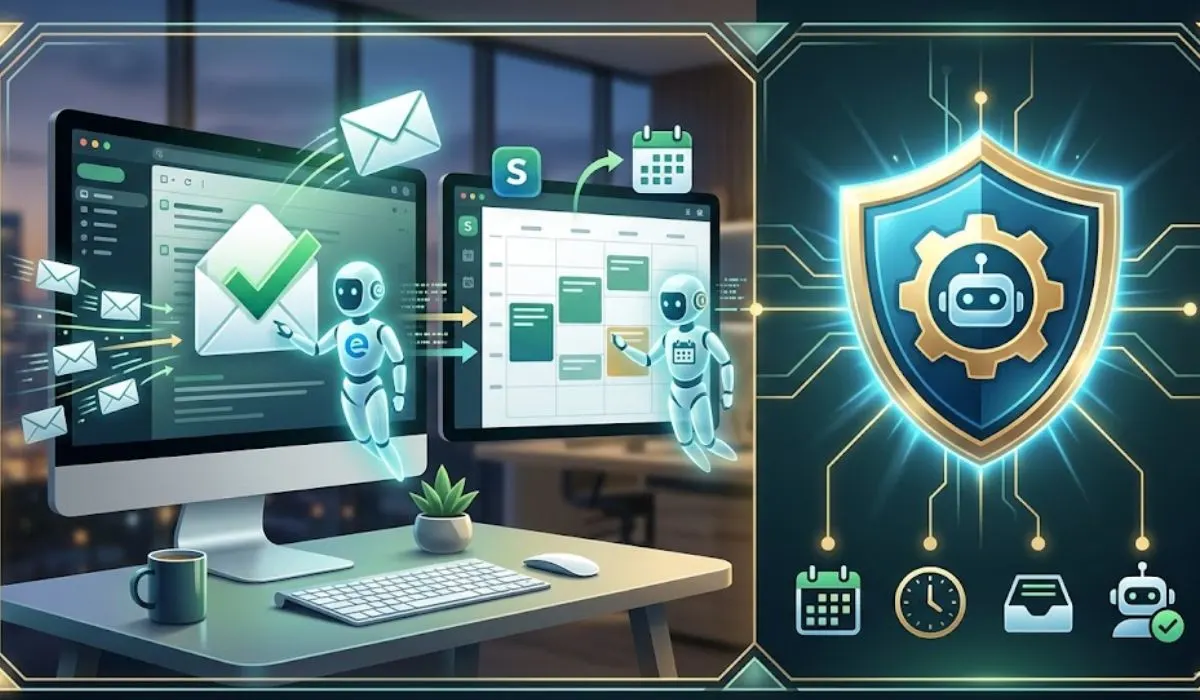
I hit 127 unread emails last Tuesday. Ten were from my kid’s school. Twenty-three were newsletters I never signed up for. The rest? Real people. Real requests. Real meetings to schedule.
I sat there at 8 PM, exhausted, staring at my Outlook inbox. Then I remembered a post on X about Microsoft’s new Frontier program. Agentic AI. Copilot that actually does things instead of just talking about them.
So I tried it. Three weeks later, my Microsoft AI Agent workflow handles 70% of my inbox noise. My calendar manages itself. And I sleep better.
Let me show you exactly how I built it. What worked. What crashed. And what you should avoid.
What a Microsoft AI Agent Workflow Actually Means?
You have heard "AI agent" a hundred times.
Here is the real definition.
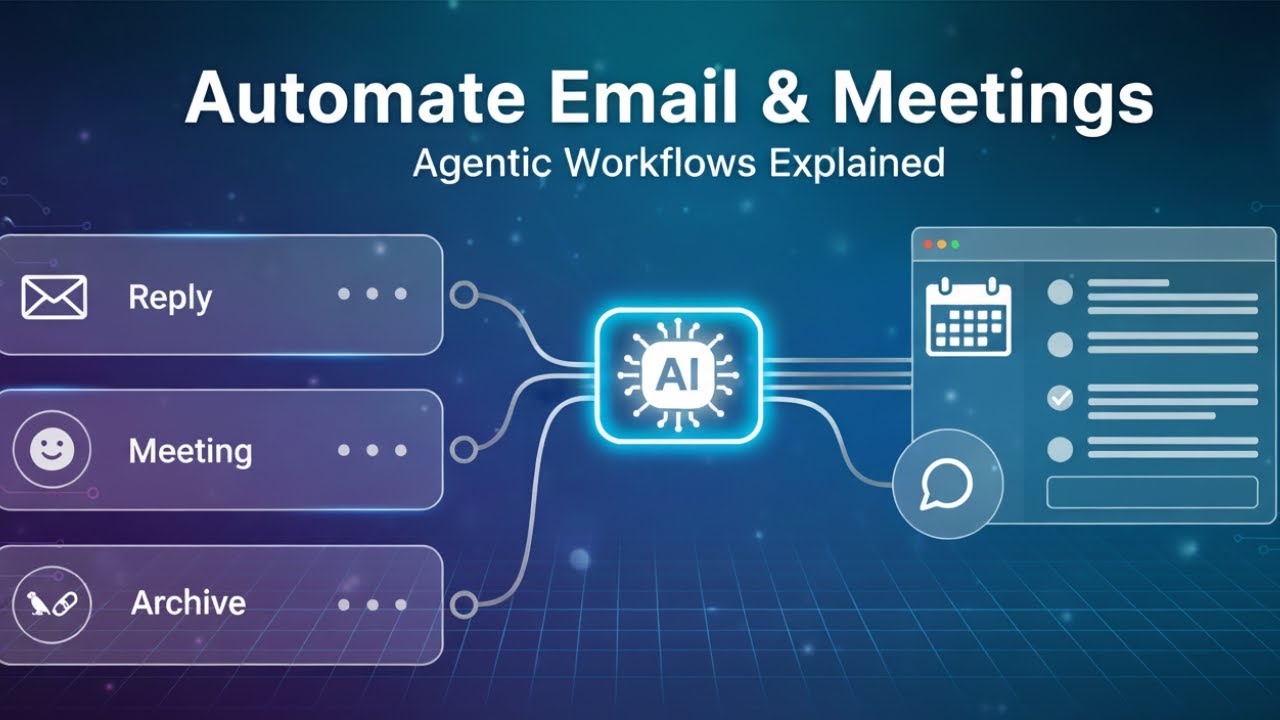
A normal AI tool waits for you to ask. "Summarize this email." "Draft a reply." You type. It answers. End of story. An AI agent works differently. It runs in the background. It checks your inbox every hour.
Read Also: What Are The Most Popular Gadgets Nowadays
It follows rules you set once. And it acts without you poking it every time. Microsoft calls this "agentic" behavior. I call it "finally useful."
The new Microsoft AI Agent workflow in Outlook can triage your email, reschedule meetings when conflicts pop up, and highlight urgent items before you even open the laptop.
You do not guide it step by step. You tell it what you want. It figures out the steps.
Real Copilot Agent Examples I Actually Use
Let me share my exact setup. Seven agents. Each does one job.
1. The Follow-Up Chaser
This one changed my life.
My prompt: "Find emails where people haven't replied in 24 hours, prioritize the ones that matter most, and draft polite follow-ups for me."
Microsoft’s AI scans my sent folder. It checks who has not responded. It ranks those conversations by importance (urgency, sender seniority, project deadlines). Then it writes a draft.
I get a list every morning at 9 AM. I review. I tweak. I hit send.
No more "I forgot to follow up." No more lost opportunities.
2. The Vacation Catch-Up
I took a long weekend last month. Friday to Tuesday.
Before, I would spend Wednesday morning drowning. 300 emails. No idea what was urgent.
Now I use this prompt: "I just returned from vacation. Help me catch up. Summarize what I missed, highlight what is most urgent, and draft a short briefing email."
Copilot pulls everything from the days I was away. It groups similar threads. It flags the three things I must handle immediately. And it writes a summary email for my boss .
Total time: 10 minutes. Not three hours.
3. The Meeting Scheduler
My calendar was a nightmare. Back to back. Double bookings. No lunch.
I built a simple agent with this prompt inside Microsoft 365 Copilot's Workflows: When I get an email from a client requesting a meeting at a certain time, check my calendar. If that time is free, send a 30-minute meeting invite for that time.
It works. No back and forth. No "can you do Tuesday at 2?" emails.
4. The 1:1 Rescheduler
My direct reports moved meetings constantly. Every reschedule cost me five minutes.
Now: Reschedule all of my 1:1s with my direct reports for next week to Friday afternoon if conflicts arise.
Copilot watches my calendar. When a conflict pops up, it moves the 1:1 to Friday afternoon automatically. I never touch it.
5. The Inbox Rule Creator
I hate building Outlook rules. Clicking through menus. Setting conditions. Testing.
Now I type: "Automatically assign a High Priority category to messages from my manager where I am on the To line."
Copilot builds the rule. Instantly.
6. The Agenda Generator
Before every product meeting, I used to scramble. Pulling notes. Finding action items. Writing bullet points.
Now: Create an agenda for tomorrow's product launch standup. Focus on open blockers, owner assignments, and a go/no-go decision.
Copilot pulls context from my email history, past meeting notes, and project files. It writes the agenda. I show up prepared.
7. The Meeting Decliner
This one saves my sanity. Review my upcoming calendar. Recommend which meetings to decline, follow, delegate, or convert into async updates.
Copilot analyzes every invite. It flags low-value recurring meetings. It suggests which ones I can skip or send a delegate to.
How to Create a Copilot Agent for Outlook?
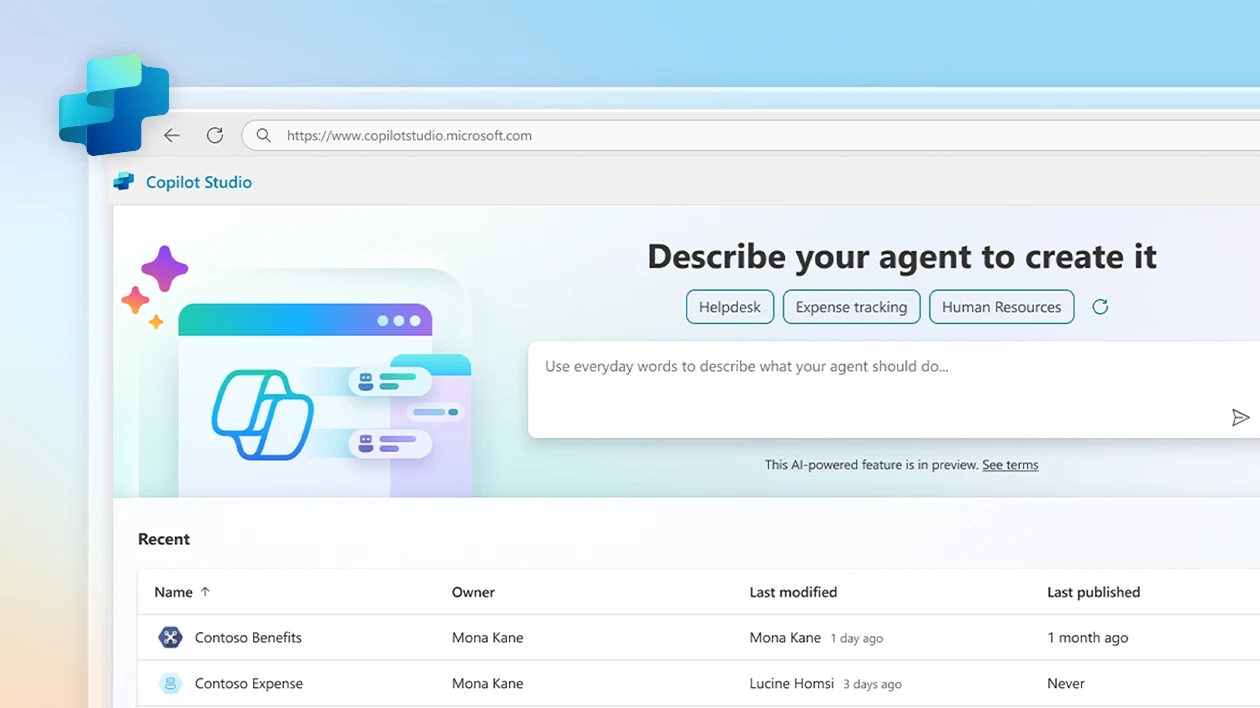
You want to build your own. Here is how.
You Must Also Like: Role Of Tech In Enhancing Data Privacy
What You Need First
Before anything works, check these boxes:
-
Your mailbox lives in Exchange Online. Not on-premise servers. Not hybrid. Full cloud .
-
You have a Microsoft 365 Copilot license. The $30/month add-on. Not the free one .
-
Your IT admin enabled Frontier program access. Many companies keep this off by default. Ask nicely.
-
You use the new Outlook for Windows or Outlook on the web. The classic version does not have these features.
Step 1: Find the Workflows Agent
Open Microsoft 365 Copilot. Look for "Workflows." It lives in the left sidebar on the web version.
Step 2: Write Your Prompt in Plain English
Do not write code. Write what you want.
Bad: "Execute conditional email triage protocol with priority scoring."
Good: "Find emails from my boss sent in the last 3 days that I haven't replied to. Flag them as urgent."
Step 3: Review What Copilot Built
The agent shows you its plan. Step by step. You can change anything before it goes live.
Step 4: Turn It On
Hit activate. The agent runs in the background now. No daily setup.
Step 5: Monitor for a Week
Check what the agent did every evening for the first week. Did it move the wrong meeting? Did it draft a weird follow-up? Adjust your prompt and try again.
The Honest Pros and Cons (From Real Daily Use)
What Works Great
Time savings are real. I cut email processing from 90 minutes to 30 minutes daily. That is five hours a week.
The AI shows its work. Copilot does not just act silently. It produces a log. "I moved meeting X to Friday at 2 PM because of conflict Y." You can reverse anything.
Calendar conflicts disappear. The agent resolves overlaps instantly. No more "this meeting was rescheduled three times" chaos.
Natural language actually works. "Always accept meetings from my manager if I am free" works exactly as written.
What Frustrates Me
The Frontier program is limited. Not everyone has access. Your IT department must opt in. Many have not yet.
It makes mistakes. Last week, Copilot declined a client lunch meeting because it thought the time conflicted. The conflict was made up. I caught it. But barely.
You need a Copilot license. 30peruserpermonth.Forateamoften,thatis30peruserpermonth.Forateamoften,thatis300 monthly. Not cheap.
On-premise Exchange users cannot use it. Period. If your company hosts its own mail servers, these features do not work.
Sales-specific agents require extra setup. The CRM-connected email drafting tools need admin configuration and Sales Copilot licenses.
Who Should Build a Microsoft AI Agent Workflow Right Now?
Do it if:
-
You receive 50+ emails daily.
-
Your calendar is always full.
-
You forget follow-ups constantly.
-
Your company already pays for Microsoft 365 Copilot.
-
You use the new Outlook app.
Wait if:
-
Your mailbox is on-premise. No agents will work.
-
Your IT team blocks Frontier features. Many security teams are cautious.
-
You send highly sensitive external emails. AI drafts are good but not perfect.
-
You enjoy manual control. Some people do. That is fine.
What Microsoft Does Not Tell You?
Three things I learned the hard way.
First, the calendar agent only works on Windows and web. Not on Mac. Not on mobile. If you live on an iPad, this will frustrate you.
Second, there is no audit log yet. When Copilot declines a meeting, you cannot easily see why. Compliance teams will hate this.
Third, error handling is unclear. What happens if the agent misclassifies an email? Microsoft's documentation does not say. I tested. Sometimes it just fails silently.
My Final Take After 21 Days
The Microsoft AI Agent workflow is not perfect.
It is experimental. It requires specific licenses. It makes occasional mistakes. But I would not go back. My inbox is calm now. My calendar makes sense. I spend mornings on real work, not email triage.
If you fit the profile above, build one agent this week. Start with the follow-up chaser. See how it feels.
Just keep an eye on it. AI agents are like interns. Great potential. Still need supervision.