I have been using Obsidian for a while now. The app is great. The one thing that used to drive me crazy was keeping my notes in sync across devices. I did not want to pay for Obsidian Sync.
The monthly subscription adds up. I already had Google Drive with plenty of storage. So I figured out how to make it work. Here is the honest guide on how to sync Obsidian notes with Google Drive securely.
First, Understand How the Sync Actually Works?
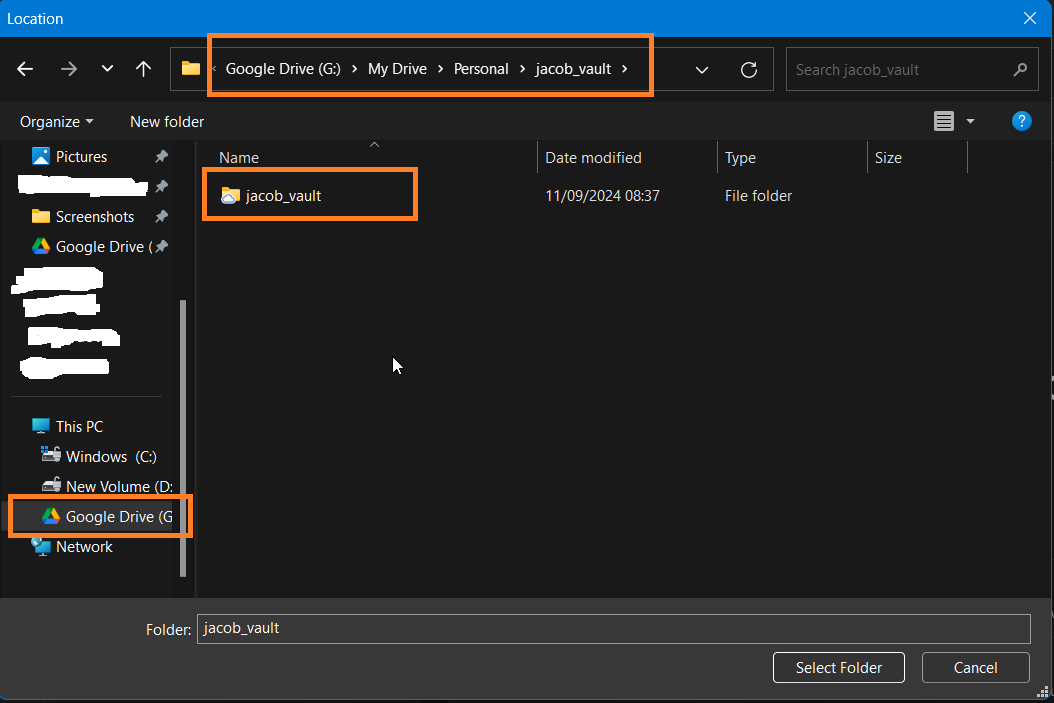
Obsidian stores your notes as plain Markdown files in a folder on your device. That folder is called a "vault." To sync, you need a plugin that moves those files to Google Drive and pulls them back down on other devices.
Read Also: Can You Hide Your Mobile Number Using WhatsApp Usernames?
The setup is not as simple as just pointing Obsidian at a Google Drive folder. Obsidian cannot read files directly from cloud storage on mobile. You need a middleman. A community plugin handles this for you.
1: The Official Community Plugin (Remotely Save)
The easiest way to start is the Remotely Save plugin. It is listed in the Obsidian community plugins directory . You can install it from within Obsidian with a few clicks.
But here is the catch. Google Drive support in Remotely Save is a PRO (paid) feature . The free version supports OneDrive, Dropbox, and WebDAV. If you want to use Google Drive without paying, you need a different plugin.
2: The Free Community Plugins
Google Drive Sync (by Richard Xiong)
This is a popular free plugin. It uses Google OAuth for authentication .
Here is how to set it up:
-
Install the plugin from the Obsidian community plugins list.
-
Enable it and go to the plugin settings.
-
Get a refresh token. Click on "Get refresh token" in the plugin settings. This opens a browser window. Authorize your Google account. Copy the code that is generated .
-
Paste the token into the plugin settings and press Enter.
-
Restart Obsidian when prompted.
-
Click the sync button on the left sidebar. This initialises your vault and uploads everything to Google Drive .
Important: Your vault name must be exactly the same across all devices for this to work .
How it handles file structure: This plugin does not recreate your folder structure in Google Drive. It saves files with their full path in the filename.
For example, "Projects/Work/Notes.md" becomes a file named "Projects/Work/Notes.md" in the root Drive folder . This looks messy in Drive, but Obsidian knows how to reconstruct the folders when it syncs.
You Must Also Like: Top 10 Eco-Friendly Tech Products for Students in 2025
A warning about iOS: Installing unofficial plugins on iOS is more difficult. One workaround is to set up the plugin on your desktop first. Then copy the entire vault folder (including the .obsidian folder with the plugin) to your iOS device .
Google Drive Vault Sync (by Haniewicz)
This is another free option with more features .
What it offers:
-
Two-way sync with Google Drive
-
Conflict handling (keeps both versions if there is a conflict)
-
Backups with preview
-
Per-device names
-
Manual and automatic sync options
Setup requires:
-
Creating a Google OAuth 2.0 client in the Google Cloud Console.
-
Enabling the Google Drive API.
-
Getting a Client ID and Client Secret.
-
Pasting these into the plugin settings .
3: The Most Secure Approach (Google Sync by sertacyildiz)
If security is your priority, look at the Google Sync plugin .
What makes it different:
-
You provide your own OAuth credentials (no shared client key)
-
Optional end-to-end encryption means even Google cannot read your notes
-
Credentials are never synced or logged
-
Syncs directly to your own Google Drive or Google Cloud Storage
Setup:
-
Create a Google Cloud project.
-
Enable the Google Drive API.
-
Create OAuth credentials (Desktop app type).
-
Paste your Client ID and Client Secret into the plugin settings.
-
Connect your account .
This is the most secure option because you are not sharing credentials with a third party.
Device Setup Tips
For Windows and Android: The process is straightforward. Install the plugin on both devices. Create a vault with the same name. Authenticate on both devices. The plugin syncs everything automatically .
For iOS: The process is trickier. Obsidian for iOS does not allow you to load files directly from Google Drive. You need to:
-
Set up the plugin on your desktop first.
-
Allow it to sync to Google Drive.
-
On your iOS device, install Obsidian.
-
Create a new local vault (not in iCloud).
-
Install the plugin on iOS by copying the plugin files over (requires a manual step) .
What to Watch Out For?
Auto-sync only works when Obsidian is open. Plugins cannot run in the background on mobile devices. If you make changes on your phone and then close Obsidian, those changes will not sync until you open the app again .
Back up your vault first. Sync plugins can overwrite or delete files if misconfigured. Always keep a backup before setting up automatic sync.
Do not edit files directly in Google Drive. The plugins use file names to track changes. Manually editing or renaming files in Drive can break the sync.
Quick Comparison
| Plugin | Free | E2E Encryption | Setup Difficulty | Best For |
|---|---|---|---|---|
| Remotely Save | Free for OneDrive, PRO for GDrive | No | Easy | OneDrive users |
| GDrive Sync (Xiong) | Yes | No | Medium | Quick free setup |
| GDrive Vault Sync (Haniewicz) | Yes | No | Medium | Backup features |
| Google Sync (sertacyildiz) | Yes | Yes | Harder | Privacy-focused users |
Final Thoughts
Syncing Obsidian with Google Drive takes some work. The plugins are not as polished as the paid Obsidian Sync. But they do work.
My honest advice: If you are comfortable with a bit of setup, the free plugins are a good option. Start with the Richard Xiong plugin if you want the simplest free setup. Use the Google Sync plugin if you want end-to-end encryption and you do not mind the extra setup.
And remember: always back up your vault before you start. I learned that lesson the hard way.